Affinity Studio · SVG · Technical diagrams · Open source · Design systems
Community Icons: a shared visual language for technical diagrams
How an Affinity Studio icon collection turns editable vector artwork into organized, integrity-checked SVG and PNG assets for technical diagrams, documentation and interfaces.
- Drafted
- Published
- Reading time
- 7 min
- Author
- Roberto Gramellini
Source:
Community Icons
· revision 55e38178
- Community Icons
- Affinity Studio icons
- technical diagram icons
- editable SVG icons
- Apache License 2.0
- Azure architecture icons
Community Icons: a shared visual language for technical diagrams
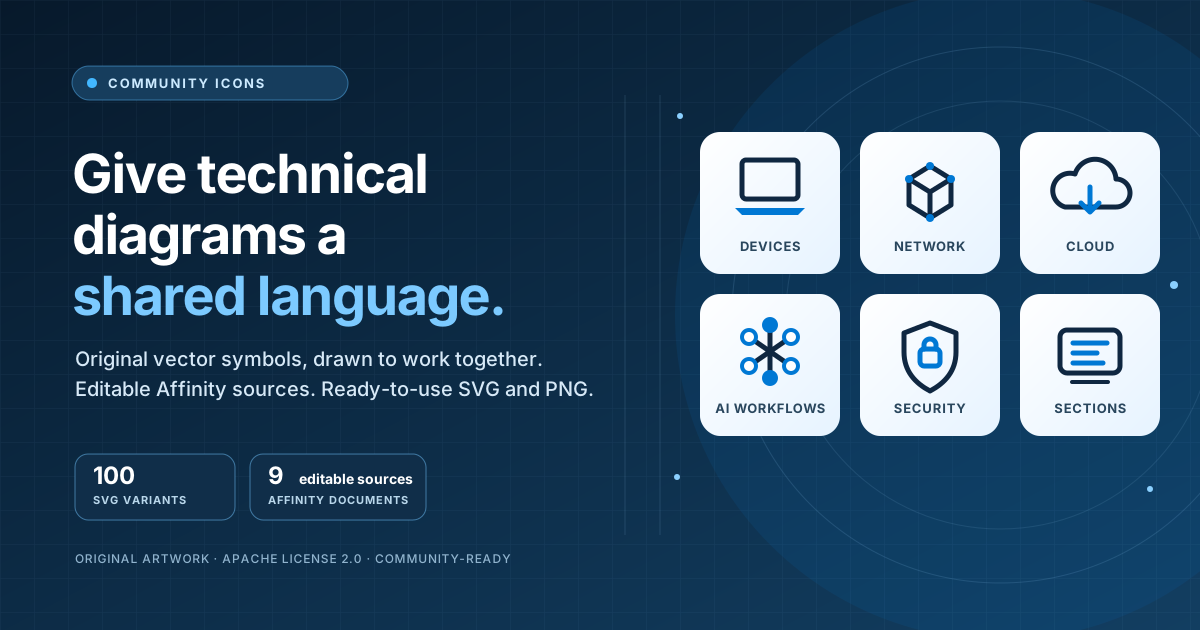
Community Icons is an Apache-2.0-licensed collection of original vector artwork created in Affinity Studio. This article describes the public source at revision 55e3817; the collection version recorded there is 2.1.1.
The diagram with twenty boxes
Picture the architecture review that starts with twenty rectangles, a few arrows and a promise that “the labels make it obvious.” By the third slide, every device is a different shade of laptop, the cloud icon came from a presentation template, and the network boundary is a hand-drawn hexagon. The information may be correct; the visual language is doing its best to hide that fact.
That friction is familiar to endpoint administrators, cloud architects, security teams and technical writers. A diagram needs recognizable symbols for devices, identity, network paths, cloud services and AI workflows, but finding them in a single style takes time. Drawing each one from scratch takes longer. And a logo-heavy service icon set is not always the right choice when the goal is to communicate a general concept rather than claim that a component is an exact product or official service.
Community Icons is a reusable collection for that middle ground: original, minimalist symbols for technical diagrams, documentation, presentations and interfaces. The project is deliberately more than a folder of finished PNGs. It keeps the native Affinity Studio documents alongside SVG and PNG exports, so people can use the ready-made assets or continue the artwork from an editable source.
One visual system, many technical subjects
At the reviewed revision, the collection contains 100 SVG variants, matching PNG exports, nine editable Affinity documents, and preview sheets. “Variants” matters: the count includes alternate color and usage treatments; it is not a claim that every one of the 100 files represents a wholly different concept.
| Collection | What it helps explain |
|---|---|
| Infrastructure 01–03 | Device management and lifecycle; network topology and connectivity; cloud, data and AI concepts |
| Extended services and infrastructure | Forty concepts grouped into Devices, Networking, Azure Services, AI workflows and Cloud Services |
| Section icons | Challenge, outcome and feature sections, including an alternate feature symbol |
| Security: lock and magnifier | Outline and solid treatments for light or dark visual contexts |
| Security: solid Azure exports | Portal and favicon sizes, with light, dark and white-lock variants |
The infrastructure collections use transparent 256 × 256 artboards, with sixteen designs arranged in a 4 × 4 grid per native document. A restrained navy-and-blue palette (#0F2741 and #0078D4) and rounded strokes help symbols from different technical areas feel like members of the same family. The extended-services document uses five ordered groups of eight artboards, making it easier to scan and export a larger catalogue without turning every new idea into a new document.
The result is a vocabulary rather than a product UI kit. A laptop, private endpoint, message queue or model-evaluation symbol can make an architecture easier to follow without trying to reproduce a vendor logo.
From editable artwork to a dependable asset
The project keeps the path from design to use intentionally simple:
- Design in Affinity Studio. Native
.afdocuments preserve the editable artboards and vector geometry. The reviewed README identifies Affinity 3.3 as the authoring version. - Export for the destination. SVG is the scalable option for diagrams, interfaces and print. Transparent 256-pixel PNGs are useful where SVG is not supported or where a raster image is more convenient. Preview sheets make whole sets easier to browse.
- Keep the collection organized. Descriptive filenames and folders group the symbols by subject, while the catalog records the distributed files.
- Verify what you downloaded.
catalog.jsonrecords each asset’s relative path, byte size and SHA-256 hash. That gives consumers a practical way to check that a file matches the indexed release instead of trusting a filename alone. - Use the symbol at an appropriate scale. The project recommends 32 pixels or larger, and 48 pixels for detail-heavy artwork. Light security variants are intended for dark backgrounds.
The catalog’s compact shape makes the integrity model concrete:
{
  "version": "2.1.1",
  "svg_variants": 100,
  "native_documents": 9,
  "files": [
    {
      "path": "sets/extended-services/01-laptop.svg",
      "sha256": "249de91b6c3b38ceb2c349174df243db059ff6d4d5671155ad7ec10fa7af646a",
      "bytes": 1435
    }
  ]
}
This is not a build system or a remote asset service: the files are in the repository, and the catalog is an inventory with integrity metadata. That makes the workflow easy to inspect and fork, while leaving teams free to integrate the selected exports into their own design systems.
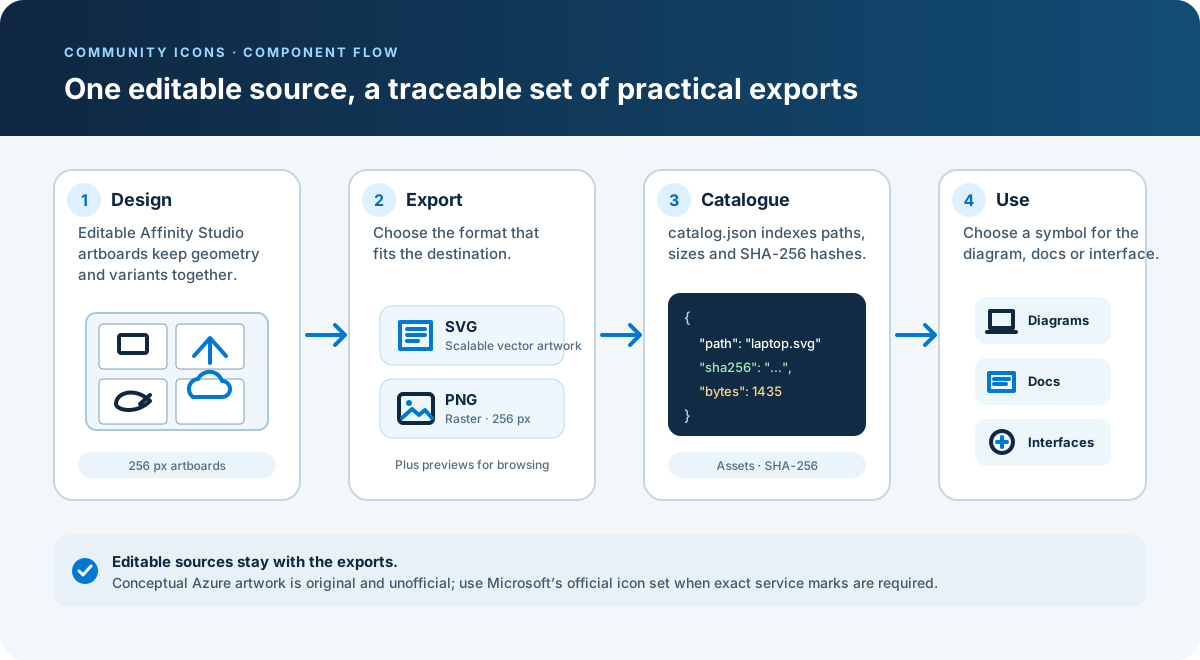
Figure 1: the editable source, distribution formats, integrity inventory and intended use stay connected without requiring a hosted service.
Why keep the Affinity files?
An exported SVG is useful when you need to place an icon. An editable source document is useful when the icon needs to change. Keeping both supports practical work such as adjusting a stroke or fill, preparing a consistent group of artboards, creating a new size variant, or contributing a related concept without reverse-engineering flattened artwork.
The source documents also make the project easier to review: the exports are not mysterious binaries produced by an undocumented pipeline. Contributors can inspect how a group is arranged, make an intentional change, export the relevant formats and update the catalog. The README invites issues and pull requests, and asks contributors to include a descriptive name, SVG export and preview, and to retain editable source when available.
No extra package manager or Git LFS client is needed for the native documents at this revision; they are stored directly in Git. To explore the collection, use GitHub’s Code → Download ZIP or clone the repository, then open the .af documents in a compatible Affinity Studio version.
A useful boundary: conceptual is not official
Some symbols describe Azure-related concepts, but they are independent illustrations, not Microsoft’s official Azure service icons or product logos. They do not imply Microsoft endorsement. Use them to explain a general architecture idea; when a diagram requires official Azure service artwork, download that artwork separately from Microsoft’s official Azure Architecture Icons collection.
That distinction is more than a footnote. A conceptual icon can be clearer in an overview, but it should not be presented as an exact service mark in a product interface or compliance document. Likewise, the recommended minimum display sizes are guidance, not a promise that every detailed icon will remain legible at favicon scale.
The artwork is distributed under the Apache License 2.0. Before redistributing artwork or modified exports, include the license, retain applicable notices, and clearly mark files you changed as the license requires. The repository’s license file at the reviewed revision is the authority; a link in an article is not a substitute for the license when redistributing the assets themselves.
Try it in your next architecture review
If you regularly explain how devices, networks, cloud services, security controls and AI workloads fit together, a consistent icon set can make a diagram easier to scan and easier to maintain. Start with a preview sheet, select the SVG or PNG that fits the destination, and keep the native Affinity document close when you need to adapt the artwork.
Explore the Community Icons repository, browse the catalog.json, and open an issue or pull request with an original contribution. The boxes in your next diagram will still be rectangles. At least now they can have a common language.