Microsoft Intune · Microsoft Graph · Browser Extension · Edge · Chrome
Intune Lens: useful Intune context without another round trip
How Intune Lens closes the repeated-navigation gap with browser hover cards, content scripts and a service-worker Graph proxy, together with the security boundaries that come with reusing the signed-in portal session.
- Drafted
- Published
- Reading time
- 4 min
- Author
- Roberto Gramellini
Source:
Intune Lens
· revision c7d02c4b
- Intune Lens
- Intune hover cards
- Intune browser extension
- Microsoft Graph
- Intune admin center productivity
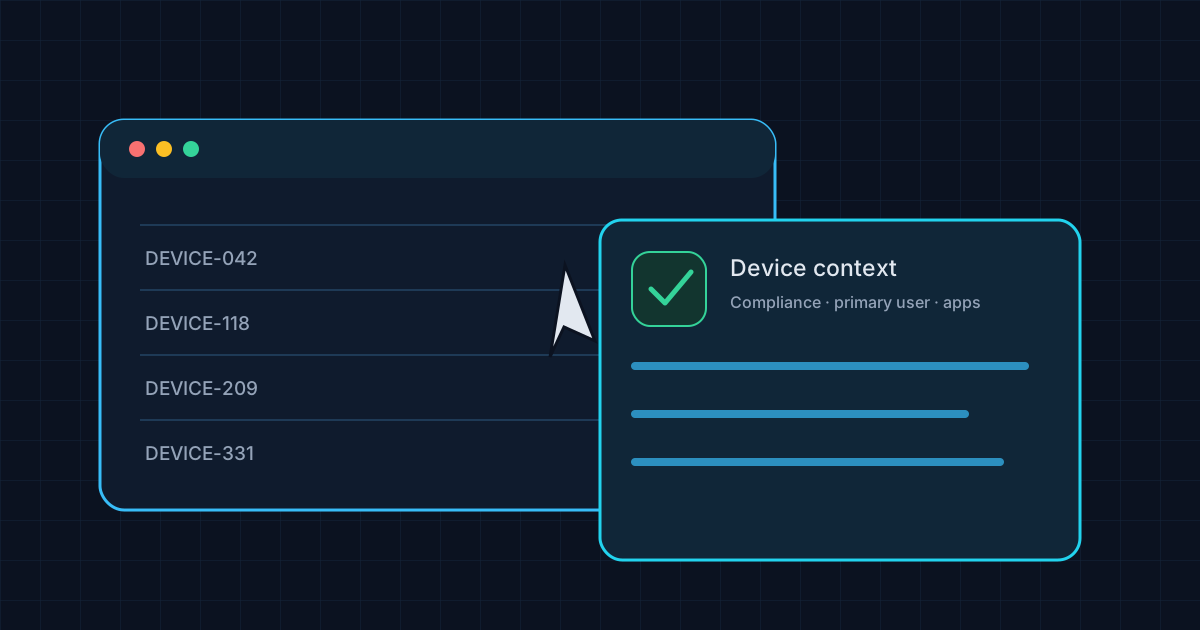
Intune Lens: useful Intune context without another round trip
Troubleshooting a device often means opening its detail page, waiting for the blade to load, checking a few fields, going back to the list, and repeating the dance. The information is already in Intune; it is the repeated navigation that makes a quick “what do we know about this object?” question feel much larger than it should.
Intune Lens is a Manifest V3 browser extension that adds contextual hover cards to the Intune admin center. It can summarize devices, users, apps, and policies in place, including selected compliance, assignment, hardware, group, or Autopatch details. It is designed as a browser-side companion rather than a separately hosted service.
Why a browser extension?
The Intune portal is a single-page application, and its blade content can live in sandboxed cross-origin frames. A conventional page script that expects one stable DOM tree misses content rendered in those frames; repeatedly navigating to each object detail also defeats the “quick glance” goal.
Intune Lens addresses both sides of the problem. Content scripts detect supported list pages and match visible names to objects. A page-context injection script can observe portal responses and relay lookup data, while the extension service worker handles Graph and Autopatch requests. The README describes the worker sharing lookup results with scripts running in blade frames, which then render the card when the pointer reaches a matching object. A MutationObserver helps the extension keep up with virtualized lists that replace DOM nodes while scrolling.
The request and rendering path
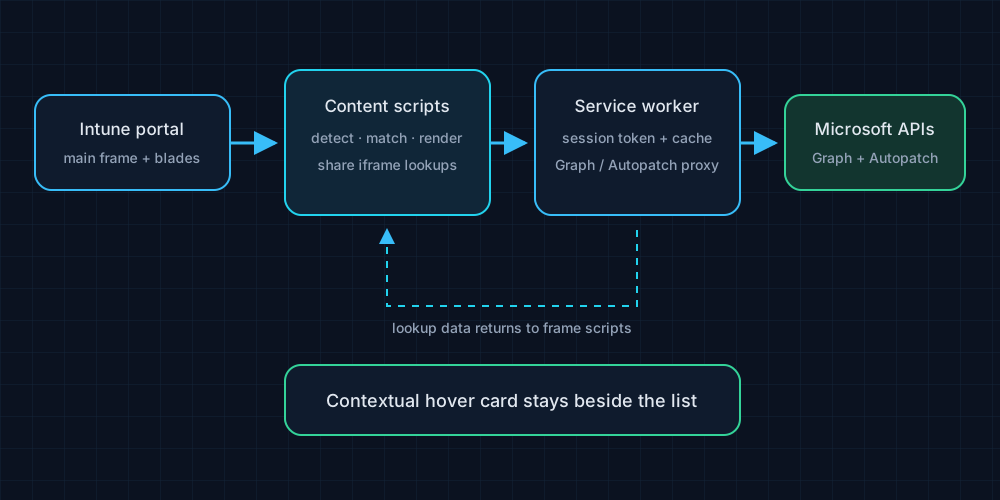
The service worker caches object responses for five minutes and caps its in-memory cache at 300 entries. The extension also captures the session's Graph and Autopatch bearer tokens from requests made by the signed-in portal, stores them in chrome.storage.session, and considers them stale after 45 minutes. The tokens are not a separate app credential; they are user-session credentials needed to call the same services the portal already uses.
Code excerpt: keep session data short-lived
This abbreviated excerpt from background.js shows the service worker's time limits and volatile token lookup, without reproducing a request authorization header.
const CACHE_TTL = 5 * 60 * 1000;
const TOKEN_MAX_AGE = 45 * 60 * 1000;
const MAX_CACHE_ENTRIES = 300;

const { authToken, tokenTimestamp } = await chrome.storage.session.get([
  'authToken', 'tokenTimestamp'
]);
if (!authToken || Date.now() - (tokenTimestamp || 0) > TOKEN_MAX_AGE) {
  throw new Error('No valid token. Browse the Intune portal so the extension can capture one.');
}
This improves convenience, not the security classification of the data. The extension can display tenant information using the authority of the current browser session, so its code and permissions deserve the same care as a privileged admin tool.
Permission and privacy considerations
There is no extension backend or separate app registration, but the extension requests webRequest, storage, and host access to Intune, Graph, Autopatch, and the portal's blade hosts. Those permissions are necessary to the design and also explain why the extension should be installed only from a reviewed, trusted build. Captured tokens are bearer credentials while valid; they must not be logged, copied into diagnostics, or sent to any unrelated endpoint.
The project documents session storage as volatile across browser restarts and says tokens are not sent to external servers. Administrators should still verify the extension source, review requested permissions, use an approved browser profile, and follow tenant data-handling rules before exposing device, user, group, or compliance details in a hover card.
Intune Lens is MIT-licensed and has no build step. The repository contains the extension files and its installation guide; this walkthrough refers to the pinned revision c7d02c4. It saves clicks, not the administrator from checking whether the right device was selected.