Series · Intune Assignment Viewer: from feature gap to implementation · Part 1 of 2
Microsoft Intune · Entra ID · Microsoft Graph · Blazor · Assignment Visibility
Intune assignments, one group at a time: closing the visibility gap
Why Intune Assignment Viewer was built to answer a group-centric question scattered across the Intune admin center, what it brings together, and what the focused read-only view does not claim to do.
- Drafted
- Published
- Reading time
- 5 min
- Author
- Roberto Gramellini
Source:
Intune Assignment Viewer
· revision 963b5cc8
- Intune assignments
- Intune assignment viewer
- Entra ID group
- Intune feature gap
- Microsoft Graph
- Intune policies
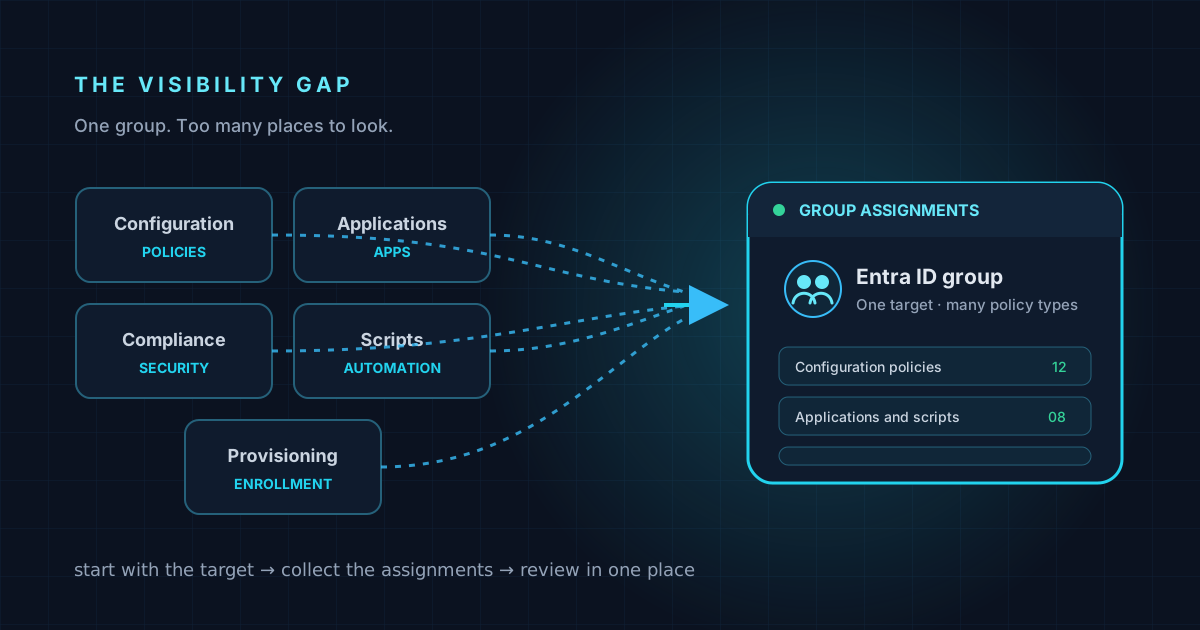
Intune assignments, one group at a time: closing the visibility gap
When a help-desk ticket says “this device should have received the policy,” the first question is often deceptively simple: what is this group actually assigned?
Answering it in Microsoft Intune can mean opening several areas of the admin center, checking different policy families, and mentally joining the results. Configuration profiles, compliance policies, applications, scripts, endpoint security, and enrollment settings do not appear as one consolidated group view. The information exists, but the operator has to assemble it.
That repeated context switching is the feature gap behind Intune Assignment Viewer: a focused portal that lets an administrator select an Entra ID group and inspect the Intune assignments targeting it on one screen.
The problem is not a lack of assignment data
Intune already exposes assignment data through Microsoft Graph and the Intune admin center. The operational friction is that the data is organized around different policy resources and product areas. To answer a group-centric question, an administrator may need to inspect several blades and remember how each one represents a target, an inclusion or exclusion, and an assignment intent.
This becomes more than a navigation nuisance during deployment checks and troubleshooting. If the question is “what should this group receive?”, a partial view can be misleading. A configuration profile is only one part of the answer; applications, compliance, endpoint security, scripts, and provisioning assignments can matter just as much.
The portal changes the starting point from open a policy and inspect its targets to select a target group and collect the policies assigned to it. It is a visibility and triage tool, not a replacement for the Intune admin center or a policy-authoring interface.
What the portal brings together
The application searches Entra ID groups and presents assignments in a card grid or a denser table. A summary dashboard provides totals and breakdowns by policy type and platform, and filters let an administrator narrow the results without losing the selected group context.
The repository documents broad coverage across these policy families:
- Device configuration and Settings Catalog
- Administrative Templates
- Compliance policies
- Applications
- App Protection and App Configuration
- Endpoint Security
- PowerShell, shell, and remediation scripts
- Provisioning, including Autopilot and Enrollment Status Page
- Cloud PC provisioning policies and user settings
The interface also labels policy subtype, platform, and assignment intent (such as Required, Available, or Uninstall) where the source resource provides that information. The goal is to make the collected result useful for a human review, rather than returning an unannotated list of Graph objects.
Two virtual targets—All Users and All Devices—provide shortcuts for assignments aimed at those broad scopes. They are convenience views, not Entra ID groups that can be searched or selected as ordinary directory objects.
A target-first user experience
The portal is built with .NET 10 and Blazor Server. After sign-in, an administrator can type part of a group name and select from matching Entra ID groups. The UI supports both a visual card layout and a table for compact review.
Once a group is selected, the server-side service queries the relevant assignment resources, normalizes them into a shared assignment model, and returns a result ordered by policy type and name. The view then derives the summary counts and platform breakdown from that collected set.
This target-first flow provides a practical working surface for questions such as:
- Which applications and policies are assigned to this group?
- Is the target included or excluded, and what is the assignment intent?
- Which policy category accounts for most of the results?
- Does this group have assignments that should be checked during a rollout?
Code excerpt: resolve a group target and preserve intent
The service does not infer assignment from a policy name. It examines each assignment's target and matches the selected group ID. When an assignment carries an app-specific intent, the method returns that value first (for example, Required or Available); otherwise it falls back to Include or Exclude based on the target type. This abbreviated excerpt comes from FindGroupAssignmentAsync in IntuneService.cs:
if (!target.TryGetProperty("groupId", out var gId)) continue;
if (!string.Equals(gId.GetString(), groupId, StringComparison.OrdinalIgnoreCase))
    continue;

matched = true;
isExclusion = odataType.Contains("exclusion", StringComparison.OrdinalIgnoreCase);

if (!matched) continue;

if (a.TryGetProperty("intent", out var intentEl) &&
    intentEl.ValueKind == JsonValueKind.String)
{
    var intentVal = intentEl.GetString();
    if (!string.IsNullOrEmpty(intentVal))
        return char.ToUpper(intentVal[0]) + intentVal[1..];
}

return isExclusion ? "Exclude" : "Include";
The actual method also handles the virtual All Users and All Devices targets before this group-specific branch. The excerpt shows why displaying only a policy title would be insufficient: assignment intent is preserved when supplied, while Include/Exclude is the fallback for a group target without an explicit intent.
It deliberately answers the group-to-policy direction. A reverse lookup—“which groups receive this policy?”—is listed as a future idea in the repository, not a current feature.
Why this is a focused tool, not another policy editor
The project aims to reduce time spent navigating and reconciling assignment information. It does not change assignments, edit policies, calculate every possible effective result of nested or transitive group membership, or claim that a displayed assignment proves a device has successfully received and applied a policy.
That distinction matters. An assignment describes targeting; delivery and compliance are separate operational questions. The viewer helps an administrator inspect the former in context, then use the appropriate Intune and device signals to investigate the latter.
The code and deployment options are available in the IntuneAssignmentViewer repository. The next article looks under the interface at Graph collection, identity separation, and the performance controls used to make a multi-category view practical.