Series · Office365Versions.com: release facts for people, scripts and assistants · Part 1 of 3
Microsoft 365 Apps · Windows · Windows Server · Web scraping · .NET
Office365Versions.com, part 1: collecting Office and Windows release data
How Office365Versions.com collects release histories, Office download estimates, SafeOS packages and Hotpatch updates, with checks before replacing stored data.
- Drafted
- Published
- Updated
- Reading time
- 11 min
- Author
- Roberto Gramellini
Source: Office365Versions.com
- Office365Versions.com
- Microsoft release tracking
- release history
- HTML parsing
- data provenance
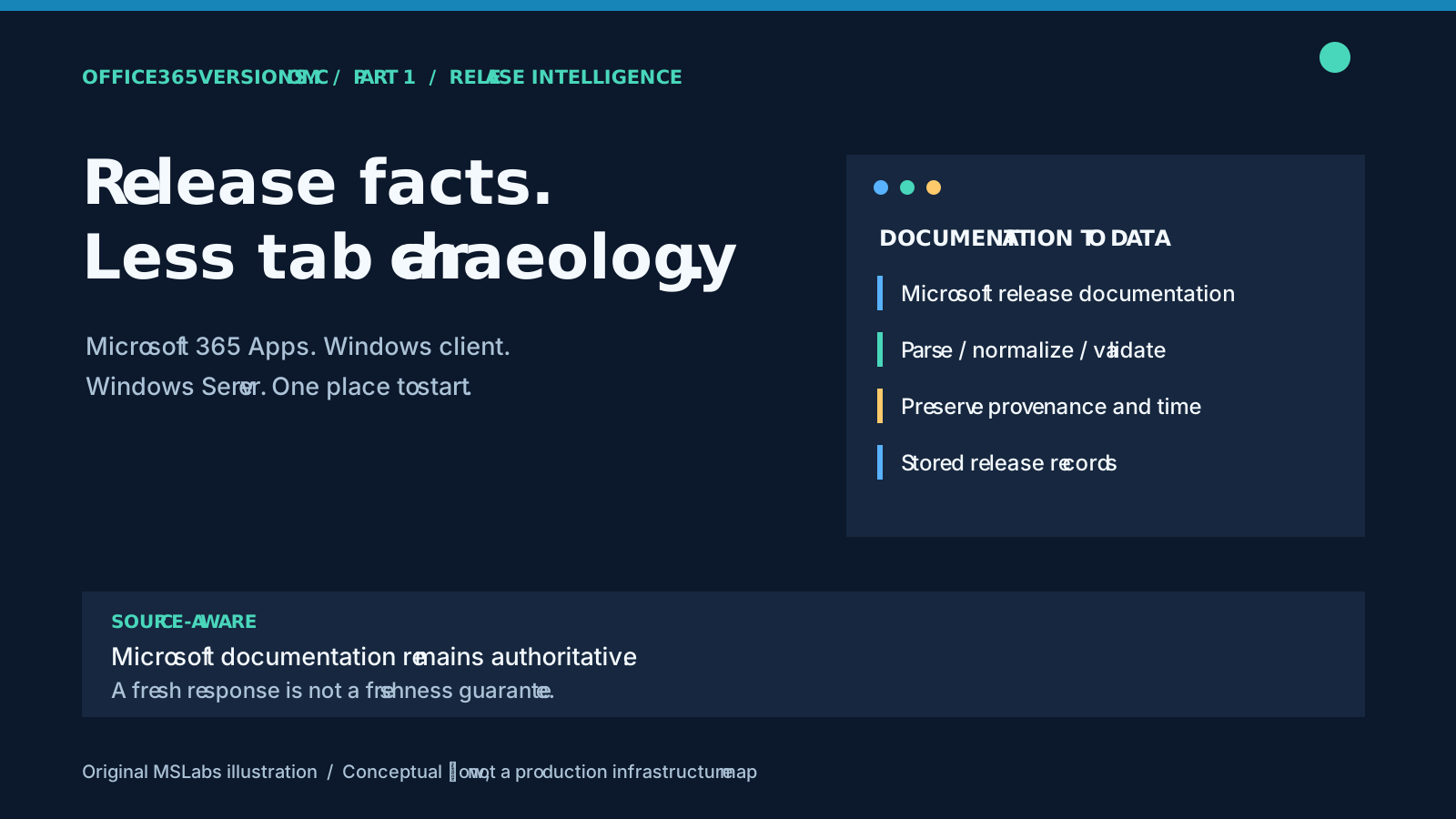
Before a deployment review, three reasonable questions can produce quite a pile of tabs. Which Microsoft 365 Apps build belongs to this channel? Where is the Windows client release history? And which KB explains the server cumulative update? Microsoft publishes the answers, but you still have to gather them from product-specific pages before the useful discussion starts.
Office365Versions.com brings those lookups together: Microsoft 365 Apps releases and download estimates, Windows client information, Windows Server histories, SafeOS Dynamic Updates and Hotpatch releases. The name has stayed, even as the site has grown well beyond Office. Windows Server coverage includes the 2016, 2019, 2022 and 2025 families.
It is an independent aggregation service. Microsoft documentation remains authoritative; the site is not operated by Microsoft. The attraction is practical: less navigation and less reshaping of published facts before you can use them.
This first article follows the data collection pipeline. Part 2 explores the REST interface; part 3 examines the reviewed MCP backend.
One question can cross several product pages
Official pages follow product, channel and servicing models. Your question may not. Checking a deployment ring can mean consulting its selected Office channel history, then a Windows build and the KB behind it.
For administrators, deployment engineers and reporting authors, collecting those facts in one place saves repeated preparation. I'd keep the question narrowly stated, though: "what has been published?" The tracker cannot tell you what is installed in your organization or whether a particular device is approved for an update.
The implementation collects public facts, keeps the context needed to interpret them and makes the records available to different consumers. Compliance decisions still need inventory and organizational policy. A version table cannot supply those by looking official.
Office and Windows need different parsers
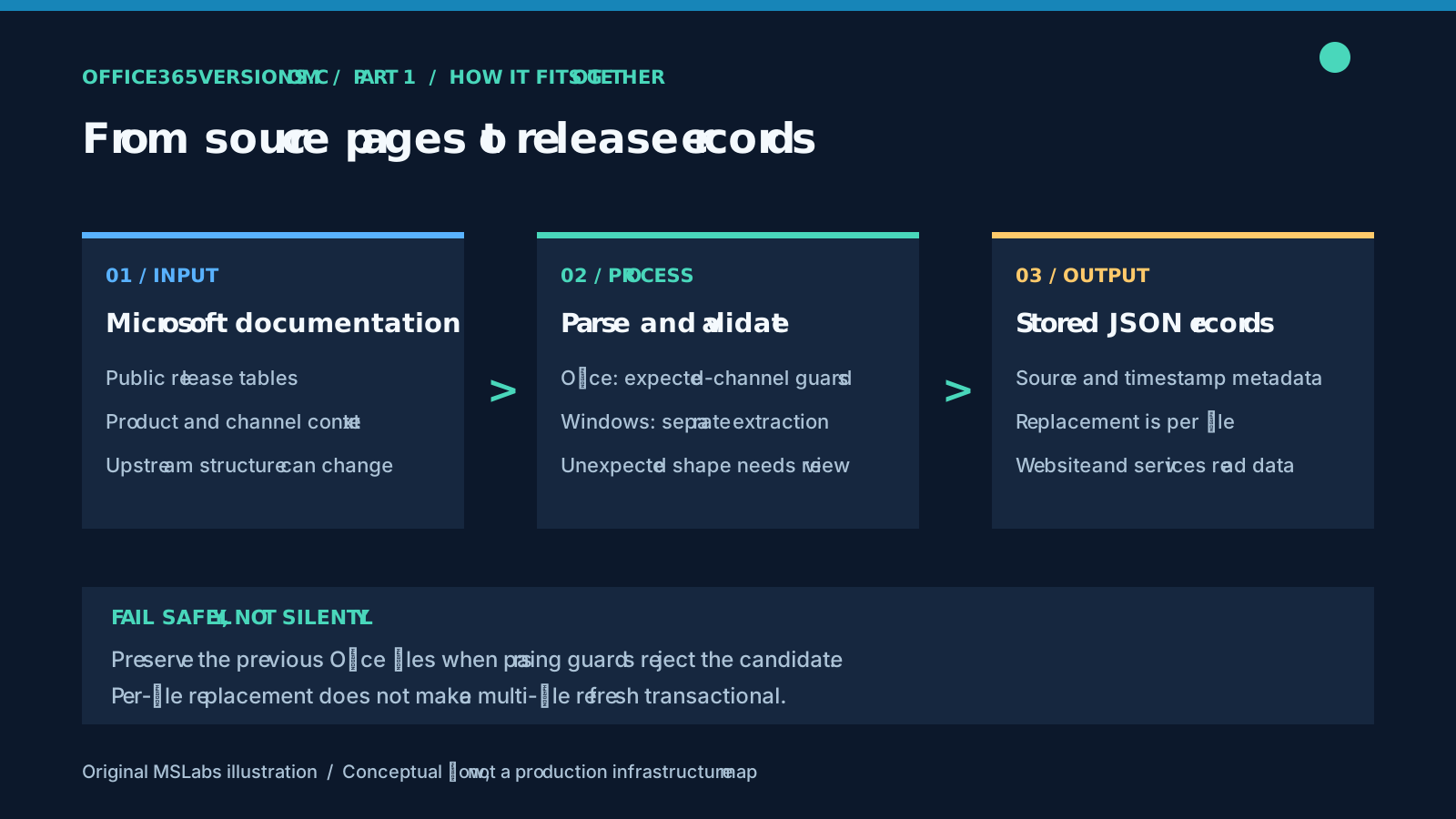
The reviewed application targets .NET 10. On the Office side, a background service fetches Microsoft's Microsoft 365 Apps update-history page and processes two kinds of table. Supported versions describe current channel/version combinations; release history lists the sequence of releases. You need both.
The Office parser locates tables, rows, cells and release links with regular expressions. It also has some less visible work to do: normalize whitespace and HTML entities, recognize supported channel names, check version/build formats, and recover the year for dates that borrow it from a preceding row.
History-table columns are identified by their header text, so a channel is not permanently tied to one column position. The parser passes the row date and channel into this method to turn release links in a cell into records:
private void ProcessChannelCell(string cellContent, string channelName, string releaseDate, List<Office365Version> releases)
{
    var linkRegex = new Regex(@"(?msi)<a(?:[^>])*href=""([^""]+)""[^>]*>(.*?)<\/a>");
    var versionBuildRegex = new Regex(@"(?msi)Version (.*?) \(Build {1,}(.*?)\)");

    var links = linkRegex.Matches(cellContent);

    foreach (Match link in links)
    {
        if (link.Groups.Count >= 3)
        {
            var url = link.Groups[1].Value;
            var linkText = ExtractCellText(link.Groups[2].Value);
            var versionBuild = versionBuildRegex.Match(linkText);

            if (versionBuild.Success)
            {
                var version = NormalizeOfficeVersion(versionBuild.Groups[1].Value.Trim());
                var build = versionBuild.Groups[2].Value.Trim();

                if (!Regex.IsMatch(version, @"^\d{4}$") ||
                    !Regex.IsMatch(build, @"^\d{4,5}\.\d{4,5}$"))
                {
                    _logger.LogWarning(
                        "Skipping unsupported Office history release: Channel={Channel}, Version={Version}, Build={Build}",
                        channelName,
                        version,
                        build);
                    continue;
                }

                if (!TryNormalizeOfficeUrl(url, out var fullUrl))
                {
                    _logger.LogWarning("Skipping Office history release with unsupported URL: {Url}", url);
                    continue;
                }

                releases.Add(new Office365Version
                {
                    ReleaseDate = releaseDate,
                    Channel = channelName,
                    Build = build,
                    Version = version,
                    FullBuild = $"16.0.{build}",
                    Url = fullUrl
                });
            }
        }
    }
}
Complete method, with indentation and blank-line whitespace normalized.
Each accepted link yields a channel, version, release date, full build and source URL. Keeping that context makes the record useful beyond a list of build strings. The text helper decodes entities, removes tags and collapses whitespace; the URL helper resolves relative links and accepts only HTTPS on Microsoft's documentation hosts. Invalid version/build formats and unsupported URLs are logged and skipped. The helpers come from the application, so this method is not a standalone scraper.
I like having those checks, but they do not make HTML stable. The parser still expects particular tables, row shapes and channel labels. A documentation redesign may require a code change.
Windows collection runs through a background service for Windows 10, Windows 11 and the four server families. Here an HTML document parser looks for recognizable table labels and headers, with fallbacks for alternative layouts. It extracts history and KB references, filters updates by edition and keeps source metadata while cleaning the records.
The Office validation rules therefore do not describe, or guarantee, Windows collection behavior.
How much is the update likely to download?
The Office tables include an estimated update download size. For bandwidth planning, that is a useful addition: a build number alone says nothing about how much a device might download. You need to know its starting build as well as the target.
These estimates come from Microsoft's download sizes for Microsoft 365 Apps updates, a separate page from version history. Reading order supplies the context: a date heading, a channel heading, a paragraph identifying the target, then a table of starting releases and sizes.
After checking that context and the table headers, this row-processing block creates the transition records:
foreach (var row in rows)
{
    var cells = row.SelectNodes("./td");
    if (cells is null || cells.Count != 3)
        throw new InvalidDataException("Microsoft download size row layout changed.");
    var source = ReadRelease(Text(cells[0]));
    if (!DateOnly.TryParse(Text(cells[1]), CultureInfo.GetCultureInfo("en-US"), DateTimeStyles.None, out var sourceDate))
        throw new InvalidDataException("Invalid source release date in download sizes.");
    var size = Text(cells[2]);
    if (size is "NA" or "")
    {
        unavailable++;
        continue;
    }
    if (!int.TryParse(size, NumberStyles.None, CultureInfo.InvariantCulture, out var mb) || mb <= 0)
        throw new InvalidDataException("Invalid download size; refusing to replace the previous snapshot.");
    var update = new UpdateDownloadSize
    {
        Channel = channel, TargetVersion = target.Value.Version, TargetBuild = target.Value.Build,
        PublishedDate = published.Value, SourceVersion = source.Version, SourceBuild = source.Build,
        SourceReleaseDate = sourceDate, DownloadSizeMb = mb
    };
    var key = (channel, target.Value.Build, source.Build);
    if (updates.TryGetValue(key, out var existing) && existing.DownloadSizeMb != mb)
        throw new InvalidDataException("Conflicting download estimates for the same transition.");
    updates.TryAdd(key, update);
}
Contiguous row-processing excerpt, with indentation normalized. The enclosing parser supplies rows, the validated date/channel/target context, the dictionary and the counters.
Use channel, target build and source build together as the key. Two transitions ending at the same recent release can have different sizes. Missing or NA sizes are counted without becoming zero, ambiguous tables remain unassociated, and conflicting sizes reject the candidate. Choosing one of the conflicting values would hide the very problem the check is there to catch.
Before putting a number into a bandwidth report, keep Microsoft's scope attached: x64, en-US Microsoft 365 Apps. Actual downloads can differ by as much as 50 MB. Older starting builds may need more data, and a channel switch may require a full download. These figures are estimates for planning, not measured traffic or universal package sizes. An absent transition stays without an estimate.
Windows release tracking now includes recovery and Hotpatch servicing
The Windows views include Windows 11, version 26H2. Microsoft lists its general availability as September 29, 2026, in the Windows 11 release information. A new feature version needs its own release and lifecycle context; it is not interchangeable with 26H1, which Microsoft scopes to specific new devices.
The dedicated SafeOS Dynamic Updates view tracks packages that improve the Windows recovery environment, WinRE. This is distinct from ordinary cumulative OS servicing and from Setup Dynamic Updates. The collector parses Microsoft Update Catalog results for package identity, product, version, architecture, catalog date and size, then enriches them from the matching Microsoft Support article.
The enrichment method checks the article before adding its fields:
public static SafeOsUpdate ParseSupportArticle(string html, string kbNumber)
{
    var doc = new HtmlDocument();
    doc.LoadHtml(html);
    var title = Text(doc.DocumentNode.SelectSingleNode("//h1"));
    if (!title.Contains(kbNumber, StringComparison.OrdinalIgnoreCase) || !SafeOsTitle.IsMatch(title))
        throw new InvalidDataException($"Support article is not the expected SafeOS update {kbNumber}.");
    var dateText = title[(title.LastIndexOf(':') + 1)..].Trim();
    DateOnly? release = DateOnly.TryParse(dateText, CultureInfo.GetCultureInfo("en-US"), DateTimeStyles.None, out var date) ? date : null;
    var build = doc.DocumentNode.SelectSingleNode("//meta[@name='release-version']")?.GetAttributeValue("content", "");
    if (build is not null && !Regex.IsMatch(build, @"^\d{4,6}\.\d{1,6}$", RegexOptions.None, TimeSpan.FromSeconds(1)))
        build = null;
    var summary = doc.GetElementbyId("summary")?.SelectSingleNode("following-sibling::p[1]");
    // Legacy support articles use headings without IDs.
    summary ??= doc.DocumentNode.SelectSingleNode("//h2[contains(., 'Summary')]/following-sibling::p[1]");
    return new SafeOsUpdate
    {
        KBNumber = kbNumber, ArticleTitle = title, ReleaseDate = release, PackageBuild = build,
        Summary = summary is null ? null : Text(summary), SupportDetailsAvailable = true
    };
}
Complete method, with indentation normalized. It uses the application's HTML-text helper and SafeOS-title expression.
The KB and category checks stop an unrelated support article from enriching the package. If a date, build or summary is missing, it stays absent; the catalog timestamp is not used to guess it. Also keep catalog package sizes separate from Office download deltas. They measure different things.
In the Hotpatch view, Hotpatch releases, restart-requiring baselines and supplemental fixes stay distinct. The collector reads product-specific Microsoft release notes and calendars, associates entries with the right build family and retains source and baseline context. An empty calendar slot does not count as a released KB, however much we might like a schedule to be a delivery.
Hotpatch can apply eligible security updates without an OS restart, but that does not eliminate baseline restarts or make every Windows edition/device eligible. Consult Microsoft's Hotpatch guidance and the product's release notes for prerequisites and exceptions. The tracker describes releases; it neither enables Hotpatch nor updates WinRE on your devices.
Reject surprising Office snapshots before replacing the files
Fetching HTML is easy compared with deciding whether the parsed result deserves to replace the last usable dataset. That decision is where I'd look first when reviewing a scraper.
The Office scraper shown here requires seven distinct supported-version rows: one Current Channel, three Monthly Enterprise and three Semi-Annual Enterprise entries. It also requires a nonempty history and nonempty histories for the channel groups checked by the writer, including Semi-Annual Enterprise Preview.
Fail these checks and the candidate is rejected before any output begins. The previous Office files survive. The assumptions are deliberately specific to the upstream layout, so someone needs to maintain them when Microsoft's documentation or channel model changes.
After validation, the scraper writes aggregate history, channel-specific histories and supported versions. Use the projection your question needs. "Supported" may include several versions within one channel, rather than exactly one latest row per channel.
Stored records need both context and a clock
The Office data model carries product facts such as channel, version, build and release dates. History rows can also carry a full build and a source URL. The surrounding metadata includes the collection timestamp, source page and measured fetch time.
I would keep the clocks separate when reading this metadata. Release date belongs to the upstream release; collection timestamp belongs to the observation; fetch duration measures performance. None proves that the latest upstream change has already arrived.
The storage service writes the new content to a temporary file, moves that file over the destination, and cleans up a temporary file left behind.
Readers avoid seeing the destination being rewritten directly. The guarantee only covers one file, though. Office files are replaced sequentially, without a dataset-wide transaction, so a mid-sequence failure can leave projections from different collection attempts.
What operating this pattern requires
The deployment needs outbound HTTPS access to the public documentation, writable local storage, and logging that distinguishes a successful fetch from a valid parse and a completed write. Background refresh intervals are configurable; neither a scheduled attempt nor a healthy web response proves a refresh succeeded.
Watch data age, unexpected count changes, required channels, edition/build consistency and missing source references. Parser fixtures captured from permitted public documentation can catch a layout change before the site quietly becomes a historical archive.
These are operational recommendations, not claims that the reviewed application implements every suggested check. In particular, the Office guards do not make the refresh globally transactional or establish identical failure behavior across both product pipelines.
For an actual deployment, go back to upstream release notes and check edition, channel and servicing context. A "latest" label helps you navigate. It should not chair the change-approval meeting.
Explore the service
Start with Office365Versions.com, compare an Office download estimate against its stated source build, and explore the Windows client history, Windows Server view, SafeOS packages and Hotpatch history. Follow the Microsoft documentation relevant to the release you are evaluating.
Code excerpts: OfficeVersionsCore contributors. The explanation and illustrations are original.
Next: turn the same release records into a useful REST interface.